

What’s supported
Supported actions
This connector supports:- Proxy Actions, using the base URL
https://connect.squareup.com.
Notes
For testing against Square’s sandbox environment, setprovider: squareSandbox in your manifest file. This is identical to square except that it uses the base URL https://connect.squareupsandbox.com.
Example integration
To define an integration for Square, create a manifest file that looks like this:Before you get started
To integrate Square with Ampersand, you will need a Square account. Once your account is created, you’ll need to create a Square app and obtain the following credentials from it:- Client ID
- Client Secret
Creating a Square app
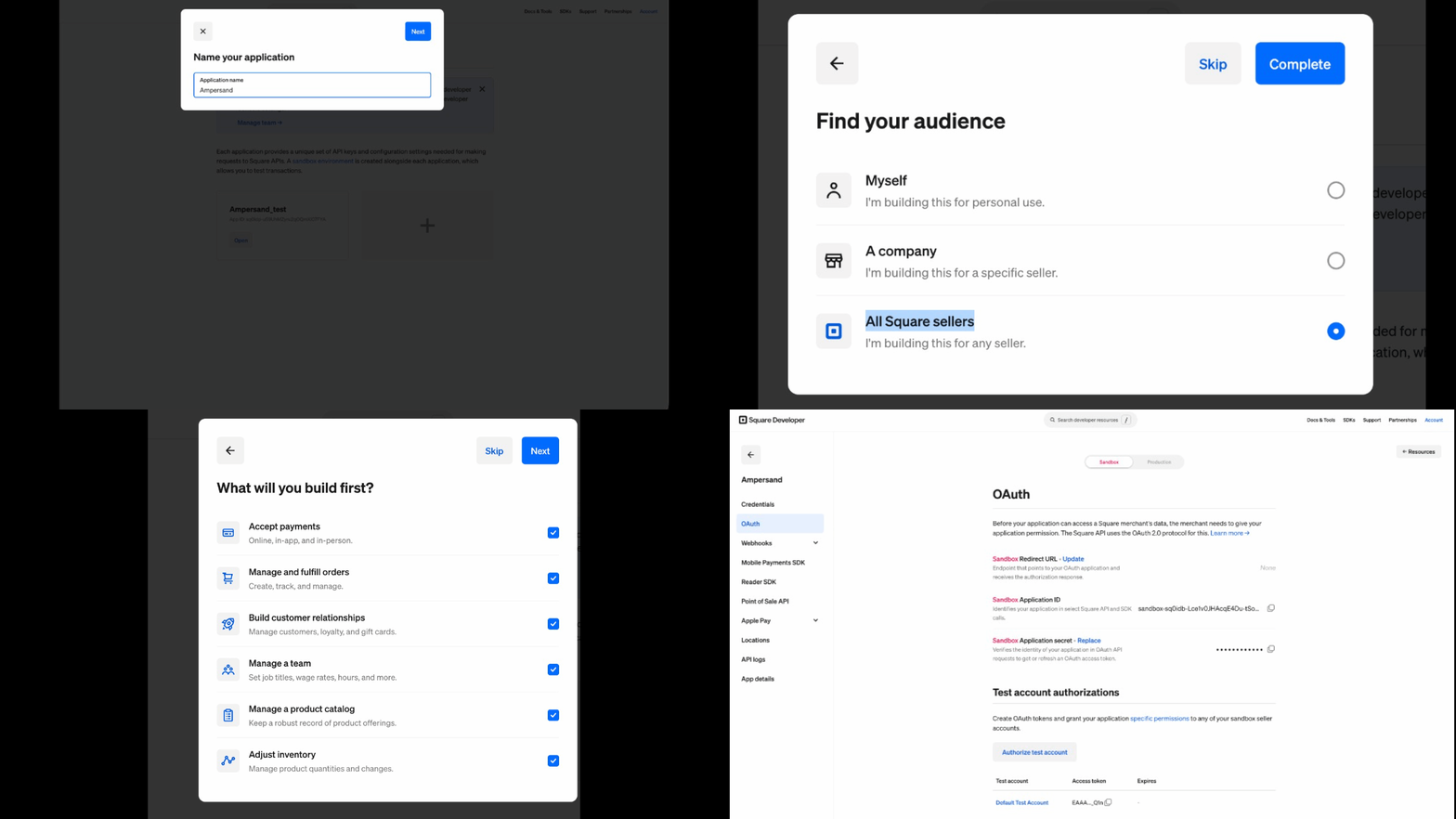
- Log in to the Square developer portal.
- Click + to create a new application and give it a name.
- Open the application and select the OAuth tab.
-
Set the redirect/callback URL to:
https://api.withampersand.com/callbacks/v1/oauth - Copy the Application ID (Client ID) and Application Secret (Client Secret) from the OAuth page.
-
Note the OAuth permissions (scopes) your integration requires.
Add your Square app info to Ampersand
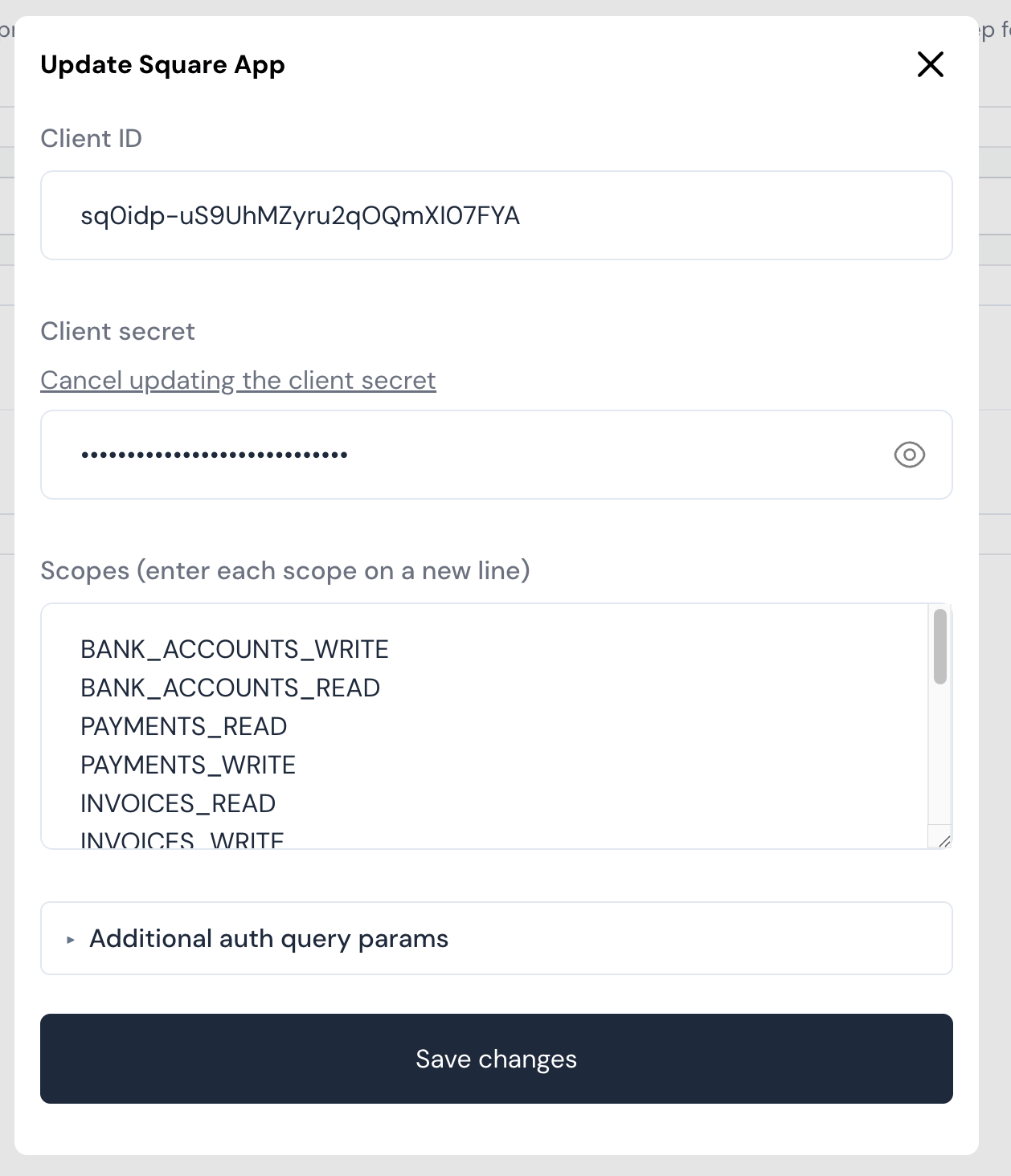
- Log in to your Ampersand Dashboard.
-
Select the project where you want to create a Square integration.

- Select Provider Apps.
- Select Square from the Provider list.
- Enter the Client ID and Client Secret obtained from your Square app.
- Enter the scopes your integration requires.
- Click Save Changes.
Using the connector
To start integrating with Square:- Create a manifest file like the example above.
- Deploy it using the amp CLI.
- Embed the InstallIntegration UI component. The UI component will prompt the customer for OAuth authorization.
- Start making Proxy Calls, and Ampersand will automatically handle the authentication with Square.